That's it. Now you can start telnet client (e.g. standard client included in Windows) and connect to HostMonitor using an address of the system where Telnet Service is running (e.g. 209.173.80.15 or www.mycompany.com).
If you are running regular telnet server and our Telnet Service is installed on the same system, change the TCP port of our Telnet Service from 23 (default) to any other.
In this case you will need to specify this port number for telnet client as well.
Note: data transferred between HostMonitor and TelnetService are encrypted. Data transferred between TelnetService and telned client are not encrypted.
If you cannot use VPN or local installation of TelnetService (telnet client and telnet service on the same system), then its better to use Remote Control Console (RCC) or WebService in HTTPS mode.
In such cases unencrypted data never transferred over network.
| Command | Parameter(s) | Description |
| - management commands: |
| Getstatus | | Retrieves information about HostMonitor (version, status of the application, parameters). |
| Start monitoring | | Starts monitoring. Accomplishes the same action as clicking the Start button on the Main window of HostMonitor. |
| Stop monitoring | | Stops monitoring. HostMonitor will still remain running as an application (or as Win32 service) but will not perform any tests. |
| Enable alerts | | Enables alert actions of HostMonitor. |
| Disable alerts | | Disables alert actions of HostMonitor. |
| PauseMonitoring | <interval> | Pauses monitoring for specified time (time should be specified in minutes). |
| PauseAlerts | <interval> | Pause alerts for interval specified in minutes. In other words, all action profiles that usually were triggered by the change of test(s) status will not be executed within N minutes. All scheduled actions (those that are executed by built-in Scheduler) will continue to execute anyway. |
| ExecuteScript | <pathtoscript> | Executes specified HM Script.
Example: ExecuteScript "C:\Program Files\HostMon\pause3backuptests.hms" |
| ImportFromFile | <filename>
[SkipDuplicates]
[WriteLog] |
Imports test items from special Text file.
SkipDuplicates - optional parameter, HostMonitor will skip item when test item with the same name already present in the TestList.
WriteLog - optional parameter, HostMonitor will record to the system log file information about all errors and warnings during the import process. |
| SaveTestList | | Saves the current test settings using current file name. |
| Reload app | | Reloads HostMonitor (as a service if it was started in Win32 service mode or as an application if it was started as a regular application). |
| Reload cfg | | Forces the HostMonitor to re-read its` settings from INI file (hostmon.ini by default). |
| Terminate | | Terminates HostMonitor. |
| - folder/test lists: |
| CD | ChangeFolder | <folder name>|<path> |
Sets the current folder. All commands affect tests only from the current folder.
You may specify the name of the folder without the full path if it is a subfolder of the current folder.
You may specify the full path to the folder which you want to make current. You may use ".." instead of a folder name when you want to step up one level.
This command actually uses similar syntax as MS-DOS or UNIX command interpreter.
Examples:
CD "Main office"
CD Root\USA\Office
CD ..
ChangeFolder ..\..\pingtests\
|
| FL | ShowFolders | [-r] | Displays the list of subfolders within the current folder. The numbers of Good/Bad/Unknown tests are displayed for each folder.
If an optional parameter "-r" was provided then all descendant subfolders would be displayed as well. |
| TL | ShowTests | [-r] [-s:<sort mode>] |
Displays the list of all tests (ID, name, status, reply) within the current folder.
If an optional parameter "-r" was provided then the tests from all descendant subfolders would be displayed.
Another optional parameter "-s:<sort mode>" defines the sorting order.
<sort mode> could be one of the following: name, status, testtime, reply, method.
Examples:
ShowTests
TL -r
TL -r -s:name
|
| TI | TestInfo | <test name> | Displays detailed information about specified test. It tries to find specified test in a current folder, if the test was not found there, HostMonitor continues to check all available folders until it finds the test with the specified name. |
| TID | TestInfoByID | <testID> | Displays detailed information about specified test item. Similar to TestInfo command but you should provide test item ID instead of test name. |
| TCMT | GetTestComments | <test name> | Show complete comment specified for test item and comments that were provided when operators acknowledged, disabled, paused test or scheduled test to be paused (different kinds of comments separated by '----' line) |
| TCMTID | GetTestCommentsByID | <testID> | Similar to GetTestComments command but you should provide test item ID instead of test name. |
| TDID | TestDependentsByID | <testID> | Shows list of IDs of all test items that depend on Master test specified by TestID |
| - the following commands allow you to create new folders and copy test items; if you are using templates, HostMonitor will modify new test items using destination folder variables. |
| CreateFolder | <full path to the folder> |
Creates new folder(s). The value of this parameter should specify the full path to the folder that you want to create.
E.g.
CreateFolder Root\USA Branch\Support\part2\
will successively create 3 folders
- "USA Branch" folder in the "Root" folder,
- "Support" folder in "USA Branch" subfolder,
- "part2" folder in "Support" subfolder.
If some (or all) of specified folders already exist, HostMonitor will not create second copy of them.
|
| CopyFolder | <srcname>|<id>|<fullpath>
<newname> | <newpath>
[-r] |
Creates new folder using all properties of the source folder (such as Reports list, Variables, Color scheme, etc).
Source folder can be specified by its name (if this folder located within current parent folder - folder selected by ChangeFolder command); folder ID or full path to the folder.
Target folder can be specified by name or full path.
Optional parameter "-r" tells HostMonitor to copy folder with its subfolders.
Example:
CopyFolder Root\Template Root\SQLServer2
CopyFolder 10 Root\Windows5 -r
|
| SetFolderVariable | <variable_name>
<variable_value>
[-inheritpartly] |
Sets or modifies folder variable for current folder.
If currently folder settings set to "inherit all variables from parent folder", this command will set "Use folder variables only" mode.
Unless you specify optional -inheritpartly parameter; in such case HostMonitor will set "Use inherited variables; folder variables may override inherited variables" option.
Note: if you are using folder-level variables as parameters of some test items, this command will modify test settings automatically.
Example:
SetFolderVariable fvar_host "10.10.5.1"
|
| CopyTestByName | <test name> | <group name>
<dest path> | <folderID> |
Copies specific test or group of tests (e.g. all Ping tests) into specified folder.
Destination folder can be specified by full path or folder ID.
Example:
CopyTestsByName _AllPing Root\Server2
CopyTestsByName "router 2" Root\Newsetup
CopyTestsByName _AllGood 105
|
| CopyTestByID | <testID>
<dest path> | <folderID> | Copies single test specified by ID into target folder specified by full path or folder ID. |
| CopyAllTests | <dest path> | <folderID>
[-skipduplicates]
[-adjustmasters]
[r] |
Copies all test items from current folder (and optionally subfolders) into target folder.
"adjustmasters" option: if dependent tests copied with master(s) then HostMonitor adjust master-dependent relations for newly created tests. E.g. if you copy 6 tests (5 Cisco tests that depends on 1 Ping test) then new Cisco tests will depend on new Ping test (if you are using folder-related variables for target IP address, then new tests will start to monitor new device without any manual adjustments).
|
- test manipulation (1):
note: the following commands work with test items within Current Folder (initially when session just started the root folder is current) |
| DisableTest | <test name> | <group name>
[-r] | Disables specified test or group of tests. If an optional parameter "-r" is provided then this operation will be applied to the current folder and all descendant subfolders within it. |
| EnableTest | <test name> | <group name>
[-r] | Enables specified test or group of tests. If an optional parameter "-r" is provided then this operation will be applied to current folder and all descendant subfolders. |
| RefreshTest | <test name> | <group name>
[-r] | Forces specified test or group of tests to execution. If an optional parameter "-r" is specified then operation will be applied to current folder and all descendant subfolders. |
| ResetTest | <test name> | <group name>
[-r] | Resets statistics for specified test or group of tests. If an optional parameter "-r" is specified then operation will be applied to current folder and all its` subfolders. |
| PauseTest | <test name> | <group name>
<interval>
[<comment>]
[-r] |
Pauses specified test or group of tests (time interval should be specified in minutes).
If an optional parameter "-r" is specified then operation will be applied to current folder and all its` subfolders.
Examples:
PauseTest "www.nasa.gov" 5 "paused for 5 min"
PauseTest _AllBad 3 -r |
| ResumeTest | <test name> | <group name>
[-r] | Resumes paused test or group of tests. If an optional parameter "-r" is specified then operation will be applied to current folder and all its` subfolders. |
| DisableAll | [-r] | Disables all tests within the current folder. If an optional parameter "-r" is specified then all tests within the current folder including all subfolders will be disabled. |
| EnableAll | [-r] | Enables all tests within the current folder. If an optional parameter "-r" is provided then all tests within the current folder and all its` subfolders will be enabled. |
| RefreshAll | [-r] | Forces all tests within the current folder to execution. If an optional parameter "-r" is specified then the command affects subfolders as well. |
| ResetAll | [-r] | Resets statistics for all tests within current folder. If an optional parameter "-r" is specified then the subfolders are included as well. |
| SetTestParam | <test name> | <group name>
<param>
<new value>
[-r] |
Sets a value of a given parameter for the specified test or group of tests. <Param> could be one of the following:
- timeout
- username
- password
- sqlquery
- retries
- testinterval
- comment
- commentlineNN (where NN is a number between 1 and 99)
Example: SetTestParam _AllTCP timeout 2000
|
| ReplaceTestParam | <test name> | <group name>
<param>
<current value>
<new value>
[-r] |
Replaces a value of a given parameter for the specified test or group of tests.
Unlike "SetTestParam" command, this one works selectively. It changes the value of a parameter only for the tests that already have a current value of this parameter equal to the <current value> argument of the command.
Example: ReplaceTestParam _AllTCP timeout 2000 5000
|
- test manipulation (2):
note: the following commands work with specific test item(s) regardless of "current folder" settings |
| DisableTestByID | <testID1> [<testID2> [...]] | Disables specified test item(s). Example: DisableTestsByID 3 4 5 |
| EnableTestByID | <testID1> [<testID2> [...]] | Enables specified test item(s). Example: EnableTestsByID 102 103 |
| RefreshTestByID | <testID1> [<testID2> [...]] | Forces specified test item(s) to execution. Example: RefreshTestsByID 77 |
| ResetTestByID | <testID1> [<testID2> [...]] | Resets statistics for specified test item(s). |
| PauseTestByID | <interval>
<comment>
<testID1> [<testID2> [...]] | Pauses specified test item(s).
Time interval should be specified in minutes.
Example: PauseTestByID 5 "paused for 5 min" 41 42 43 |
| ResumeTestByID | <testID1> [<testID2> [...]] | Resumes paused test item(s). |
| AckTestByID | [StopAlerts]
<comment>
<testID> [<testID2> [...]] | Acknowledges failed test item(s) |
| SetTestParamByID | <testID1>
<param>
<new value> |
Sets a value of a given parameter for the specified test item. <Param> could be one of the following:
- timeout
- username
- password
- sqlquery
- retries
- testinterval
- comment
- commentlineNN (where NN is a number between 1 and 99)
Example: SetTestParamByID 55 timeout 2000
|
| ReplaceTestParamByID | <testID>
<param>
<current value>
<new value> |
Replaces a value of a given parameter for the specified test item.
Unlike "SetTestParam" command, this one works selectively. It changes the value of a parameter only for the tests that already have a current value of this parameter equal to the <current value> argument of the command.
Example: ReplaceTestParamByID 55 timeout 2000 5000
|
| - global variable commands: |
| ShowUserVariables | [<variable>] | Shows the list of global macro variables and their current values. If an optional parameter <variable> is specified then only the value of this variable will be displayed |
| SetUserVariable | <variable> <value> | Sets the value of a variable (if such variable does not exist, creates a new variable).
Note: Variable names are not case sensitive. |
| SaveUserVariables | | Saves changes |
| LoadUserVariables | | Loads previously saved variables |
| - other: |
| Help | | Displays list of available commands (and parameters) |
| Disconnect | | Disconnects client from HostMonitor |



 What's New
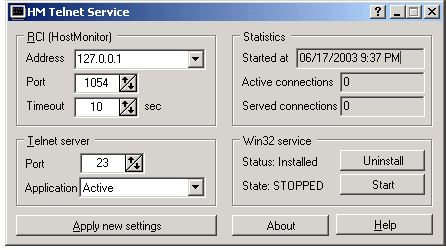 This application works like Telnet server and allows you to control HostMonitor remotely using any telnet client.
Telnet Service allows you to check brief or detailed status of any test and folder.
Also you can disable and enable tests, reset statistics, force tests to execution and even change some parameters of the tests.
HM Telnet Service allows you to start or stop monitoring process, enable or disable alerts, change global macro variables, etc.
This application works like Telnet server and allows you to control HostMonitor remotely using any telnet client.
Telnet Service allows you to check brief or detailed status of any test and folder.
Also you can disable and enable tests, reset statistics, force tests to execution and even change some parameters of the tests.
HM Telnet Service allows you to start or stop monitoring process, enable or disable alerts, change global macro variables, etc.